
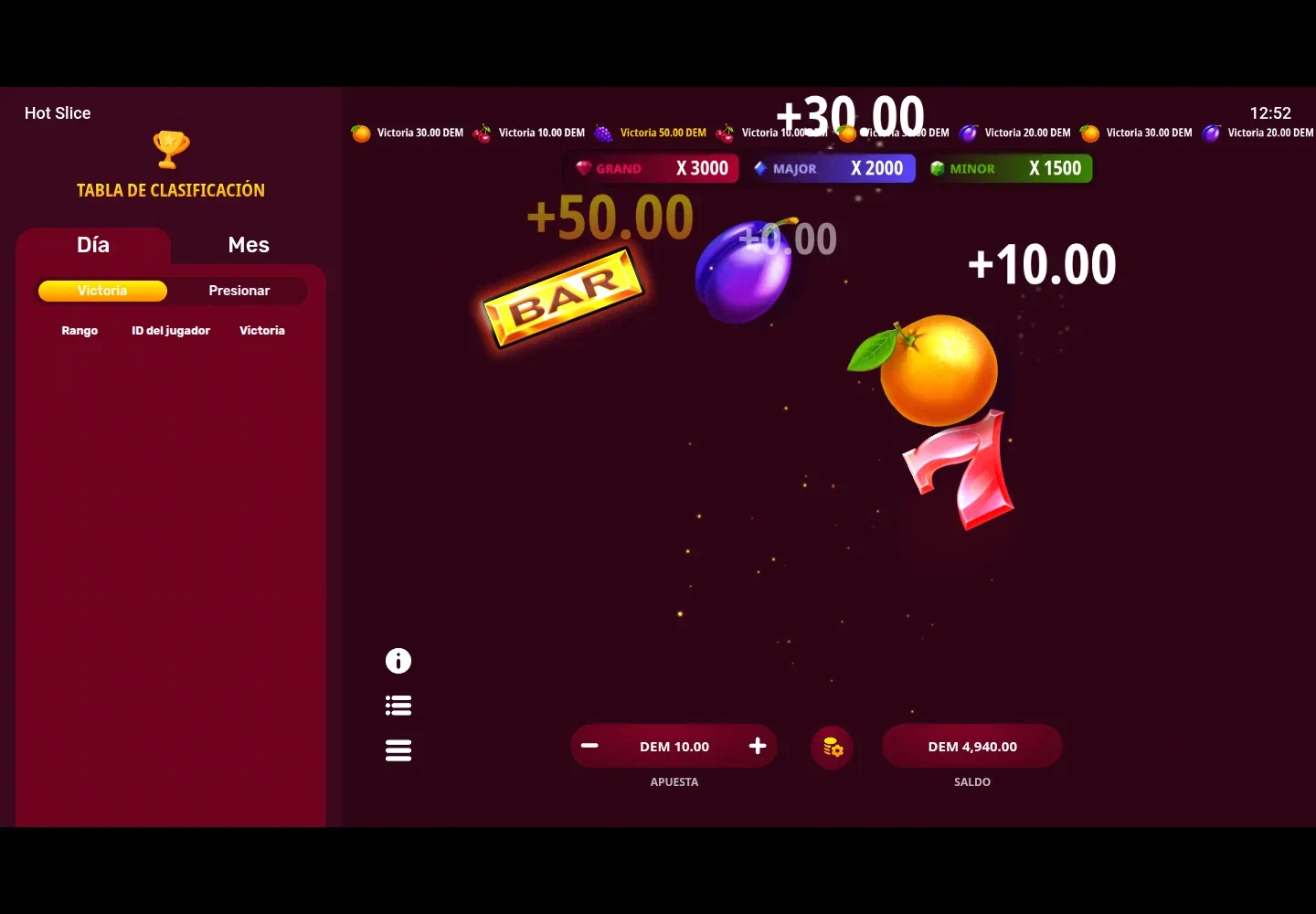
Mobile access and the game client
The HTML5 version of Hot Slice opens as a game client in your chosen access environment. The mobile format brings together the symbol area and touch controls so you can follow the action on a small screen. To start, identify the Evoplay title and let the client finish loading.
When the operator app is your chosen environment, the app and game are two distinct parts. The operator account manages balance, navigation and customer support. Hot Slice brings together the bet controls, fruit and symbols, paytable and results of each interaction.
The access button lets you continue to a gaming service. For a first look at the mechanics, the demo opens the DEM credit environment. Choose the route for your task before using an account balance.
Prepare the screen for gestures
Position your device so you can see the objects that appear and the bottom bet strip. Before taking several actions, look at where each control sits and check that your chosen gesture acts on the symbol you intend to select.
A tap and a swipe are two ways to interact with the game. Each action counts as a bet. Practising one interaction at a time helps you connect the gesture, the object’s opening and the result that appears. The controls guide describes the full sequence.
If the browser or access environment shows its own controls around the game, identify which buttons belong to the client. The Hot Slice information menu is where you can read the game’s rules and paytable.
What to look at on Android or iPhone
Start by opening your usual operator access or the practice client in the device’s browser. Identify Hot Slice by Evoplay, wait for it to load and look at the play area’s layout. Then locate the bet, information and on-screen controls.
Installation functions, an app’s version and store options belong to the particular environment you choose. Read that access information when you need to manage an operator app.
For practice, take one action and read its result before repeating it. Return to the paytable whenever a symbol appears that you want to identify. For a loading issue, help arranges the checks by screen and task.
Continuing on mobile or desktop
The desktop layout retains the game’s references: amount per interaction, symbols and results. On a touch screen you use your finger; in the desktop environment, use the available interaction control. The selected bet remains the cost reference for each action.
Before changing environments, look at the account and session you are using. The practice client displays DEM; access with an account balance takes place at the operator. Real-money play separates account conditions from Hot Slice mechanics.
Complete your first visit with a short sequence: open the client, locate the bet, read the information and perform a practice interaction. Then return to the game page to choose the next task you want to explore.